How to Install Mods in Minecraft and What They Are
Minecraft is one of the most popular sandbox games ever created. Millions of players around the world enjoy building, exploring, surviving, and creating in its endless blocky universe. But after playing the vanilla version for a while, many players want something new. That’s where mods come in. If you’ve ever wondered how to install mods […]
Minecraft is one of the most popular sandbox games ever created. Millions of players around the world enjoy building, exploring, surviving, and creating in its endless blocky universe. But after playing the vanilla version for a while, many players want something new. That’s where mods come in.
If you’ve ever wondered how to install mods in Minecraft and what they are, this guide will explain everything in simple terms. Whether you’re a beginner or an experienced player, you’ll learn how mods work, where to find them, how to install them safely, and which ones are worth trying first.
What Are Minecraft Mods?
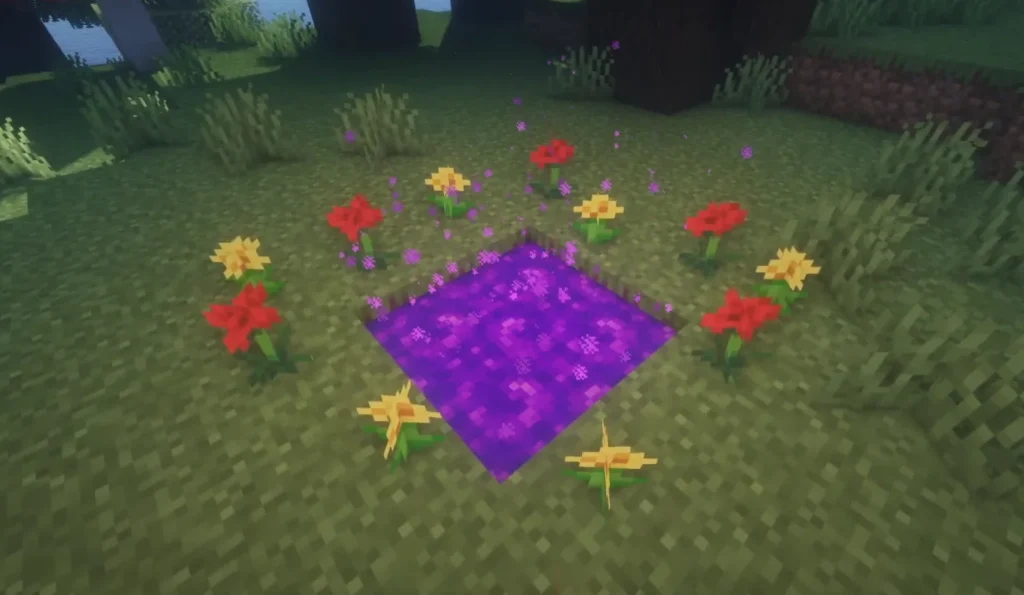
Minecraft mods are custom modifications created by players and developers that change or expand the game. The word “mod” comes from “modification.” These files can add new blocks, creatures, mechanics, dimensions, weapons, vehicles, and even completely new gameplay systems.
Some mods make Minecraft look better with realistic graphics. Others improve performance or add magical adventures, technology systems, farming tools, and survival mechanics.
In short, mods allow players to customize Minecraft exactly the way they want.
Why Players Use Mods
Mods make Minecraft feel almost unlimited. Players use them for many reasons:
More Content
Some mods add hundreds of new items, mobs, and biomes.
Better Graphics
Shader and visual mods can transform Minecraft into a beautiful modern-looking game.
Improved Gameplay
Mods can improve inventory management, crafting, combat, and exploration.
Performance Optimization
Certain mods help Minecraft run faster on weaker computers.
Creative Freedom
Players can build advanced machines, magic systems, or entire cities with modded tools.
Minecraft becomes a completely different experience when mods are added.
Types of Minecraft Mods
There are thousands of mods available online. Here are the most common categories.
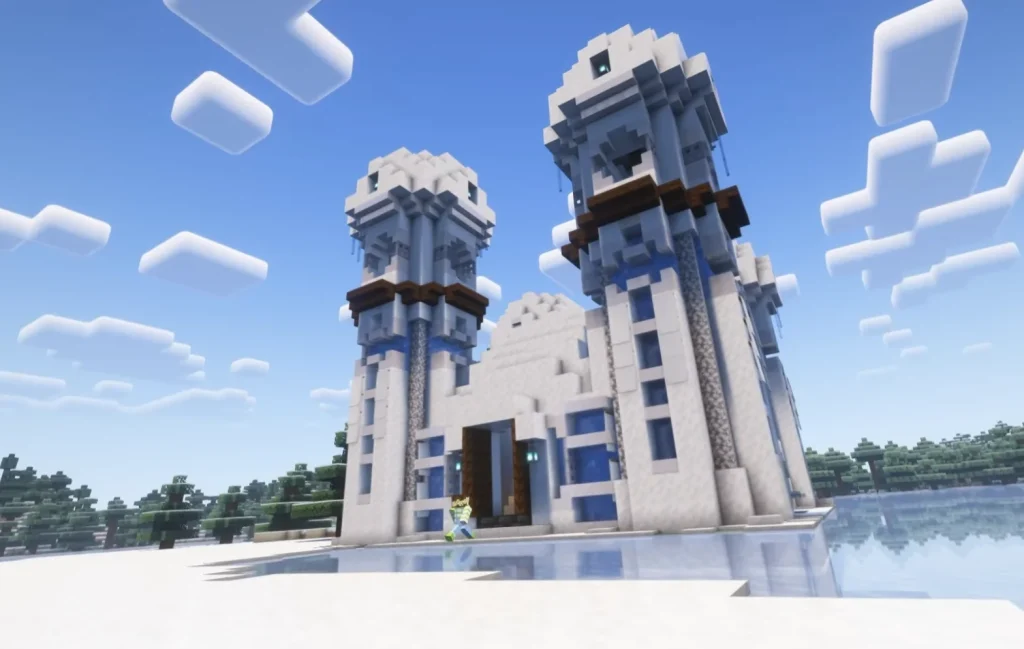
Gameplay Mods
These change the way Minecraft works.
Examples:
- New dimensions
- RPG systems
- Advanced survival mechanics
- Quest systems
Technology Mods
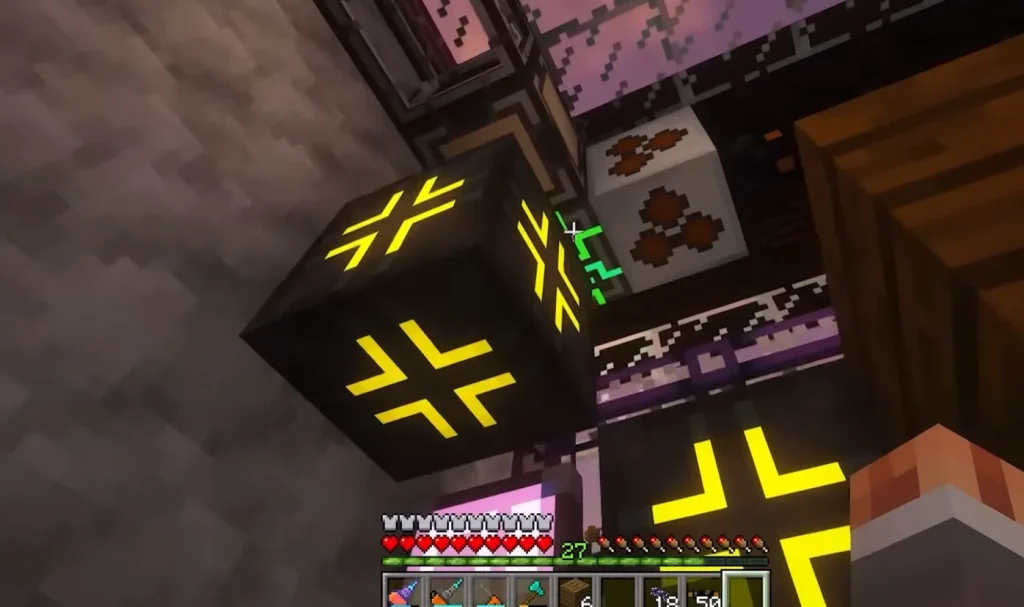
Technology mods add machines, factories, automation, and energy systems.
Popular examples:
- IndustrialCraft
- Mekanism
- Thermal Expansion
Magic Mods
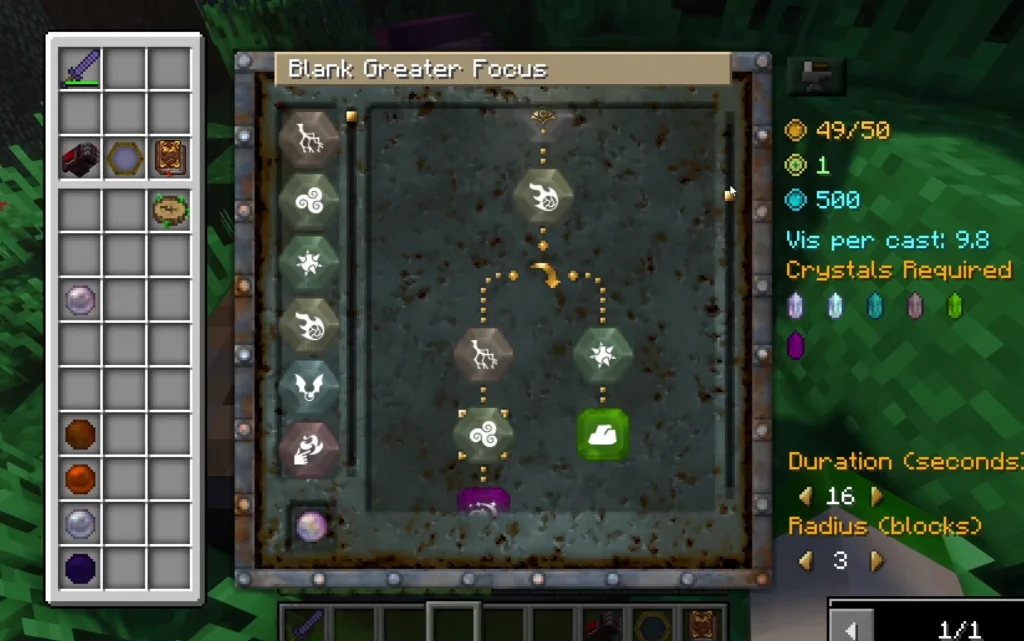
Magic-focused mods introduce spells, rituals, magical creatures, and enchanted items.
Popular examples:
- Thaumcraft
- Botania
- Ars Nouveau
Visual Mods
These improve textures, lighting, shadows, and animations.
Examples:
- OptiFine
- Shaders
- HD texture packs
Utility Mods
Utility mods improve convenience.
Examples:
- Minimap systems
- Inventory sorting
- Recipe viewers
Minecraft Java vs Bedrock Mods
Before learning how to install mods in Minecraft and what they are, you must understand the difference between Minecraft versions.
| Version | Mod Support |
|---|---|
| Minecraft Java Edition | Full mod support |
| Minecraft Bedrock Edition | Limited addon support |
Java Edition
Most Minecraft mods are designed for Java Edition on PC. This version has the largest modding community.
Bedrock Edition
Bedrock supports addons instead of traditional mods. These are more limited but easier to install.
If you want the best modding experience, Java Edition is the recommended choice.
Are Mods Safe to Use?
Mods are generally safe if downloaded from trusted sources. However, downloading files from random websites can be risky.
Safety Tips
- Always scan downloaded files with antivirus software
- Avoid suspicious ads and fake download buttons
- Read user reviews before downloading
- Keep backups of your Minecraft saves
Being careful helps protect your computer and game files.
What You Need Before Installing Mods
Before installing mods, make sure you have:
1. Minecraft Java Edition
Most mods require Java Edition.
2. Java Installed
Minecraft mods depend on Java Runtime Environment.
3. A Mod Loader
A mod loader allows Minecraft to run mods.
The two most popular loaders are:
- Minecraft Forge
- Fabric
4. Enough RAM
Large modpacks may need additional memory allocation.
How to Install Minecraft Forge
Minecraft Forge is the most popular modding platform for Minecraft.
Step 1: Download Forge
Visit the official Forge website:
https://files.minecraftforge.net/
Choose the version matching your Minecraft installation.
Step 2: Run the Installer
Open the downloaded file and select:
- Install Client
Press OK.
Step 3: Open Minecraft Launcher
A new Forge profile should appear automatically.
Step 4: Launch Forge
Run Minecraft once with Forge installed.
This creates the necessary mod folders.
How to Install Fabric
Fabric is a lightweight alternative to Forge.
Why Use Fabric?
- Faster performance
- Lightweight
- Popular for optimization mods
Fabric Installation Steps
- Download Fabric Installer
- Run installer
- Choose Minecraft version
- Click Install
- Launch Minecraft using Fabric profile
Fabric is especially popular for FPS optimization.
How to Download Mods Safely
Now that Forge or Fabric is installed, it’s time to download mods.
Choose the Correct Version
Mods must match:
- Minecraft version
- Forge or Fabric version
Example:
- Minecraft 1.20.1
- Forge 47.1.0
Wrong versions often cause crashes.
Recommended Download Sources
We recommend downloading mods from our website. We source them from the original sources with clear attribution to the author, and we clearly categorize them so you can find the perfect mod for you.
How to Install Mods in Minecraft
Now let’s answer the main question: how to install mods in Minecraft and what they are with a simple step-by-step tutorial.
Step 1: Locate the Minecraft Folder
Windows
Press:Windows + R
Type:%appdata%
Open:.minecraft
Step 2: Open the Mods Folder
Inside .minecraft, find:mods
If it does not exist, create it manually.
Step 3: Move Mod Files
Drag downloaded .jar files into the mods folder.
Step 4: Launch Minecraft
Open Minecraft Launcher and choose:
- Forge profile
or - Fabric profile
Start the game.
Step 5: Verify Installation
If successful:
- Mods button appears in the menu
- New features load in-game
Congratulations — your mods are installed!
Best Mods for Beginners
If you are new to modding, start with these popular choices.
| Mod | Purpose |
|---|---|
| OptiFine | Better FPS and graphics |
| JEI (Just Enough Items) | Recipe viewer |
| Xaero’s Minimap | Navigation |
| Biomes O’ Plenty | More biomes |
| JourneyMap | Advanced map system |
These mods are beginner-friendly and highly stable.
Common Mod Installation Errors
Even experienced players encounter problems.
Game Crashes on Startup
Usually caused by:
- Wrong mod version
- Missing dependencies
Black Screen
Graphics mods may conflict.
Missing Mods Error
Some mods require additional libraries.
Low FPS
Too many mods may overload your computer.
Always read installation instructions carefully.
Multiplayer and Mods
Playing modded Minecraft with friends is incredibly fun.
Server Compatibility
All players must usually have:
- Same mods
- Same versions
- Same mod loader
Modded Servers
Popular server software includes:
- Forge Server
- Fabric Server
Many massive public modded servers exist online.
Advanced Modding Tips
Once comfortable with mods, you can explore more advanced setups.
Modpacks
Modpacks combine many mods into one package.
Popular launchers:
- CurseForge App
- Technic Launcher
- ATLauncher
Shaders
Shaders dramatically improve graphics realism.
Popular shader packs:
- SEUS
- BSL
- Complementary Shaders
FAQs About How to Install Mods in Minecraft and What They Are
Yes, most Minecraft mods are completely free.
Mods from trusted websites are usually safe, but always scan files for security.
Traditional Java mods do not work on consoles. Bedrock addons are limited alternatives.
Most crashes happen because of incompatible versions or missing dependencies.
Yes, but some mods may conflict with each other.
Forge is best for large modpacks, while Fabric is excellent for performance mods.
Conclusion
Learning how to install mods in Minecraft and what they are opens the door to endless possibilities. Mods can completely transform Minecraft by adding new adventures, better graphics, powerful tools, and exciting gameplay systems.
Although modding may seem complicated at first, the process becomes simple after a little practice. By using trusted websites, compatible versions, and proper mod loaders like Forge or Fabric, anyone can safely enjoy the incredible world of Minecraft mods.
Whether you want realistic graphics, magical adventures, advanced technology, or smoother performance, there’s a Minecraft mod for you.
For more Minecraft guides, mods, texture packs, and tutorials, visit:
👉 https://minecraft-catalog.com
No comments yet